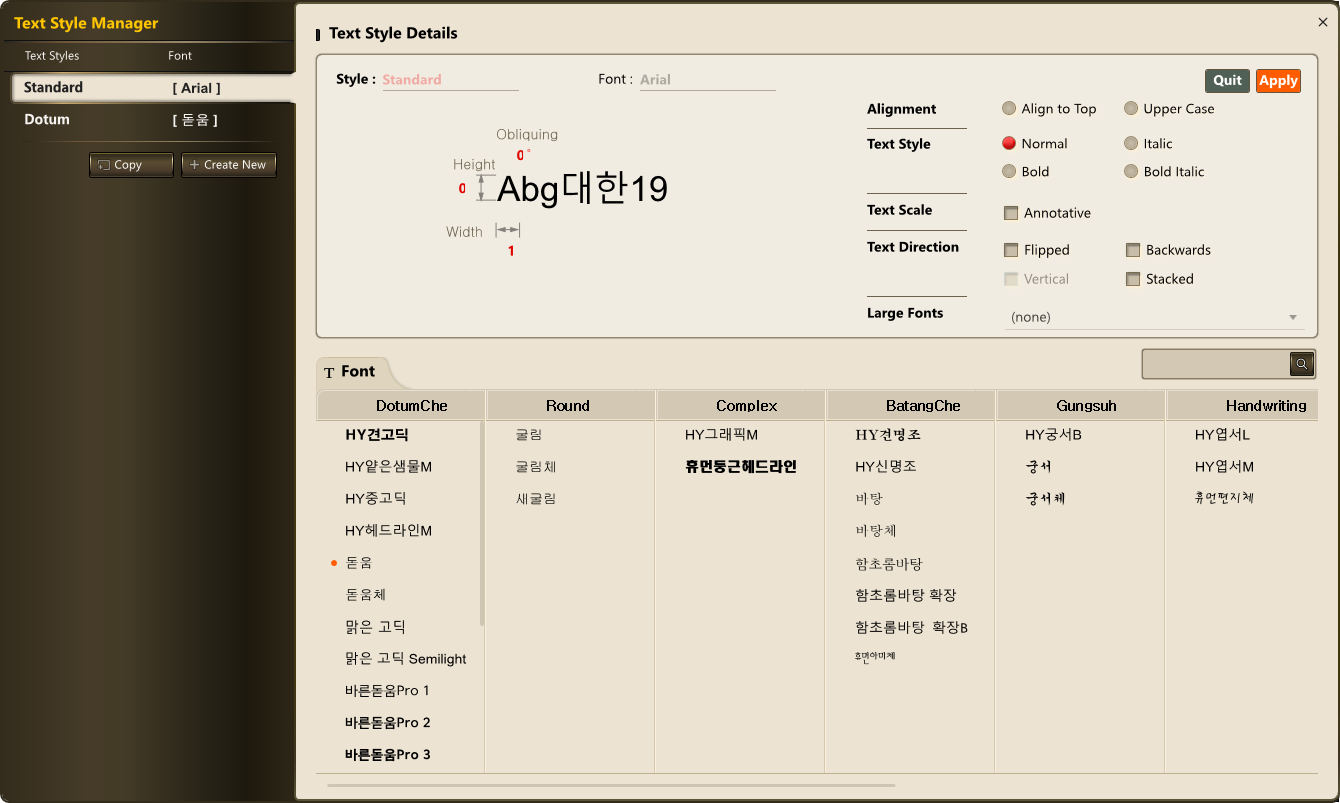
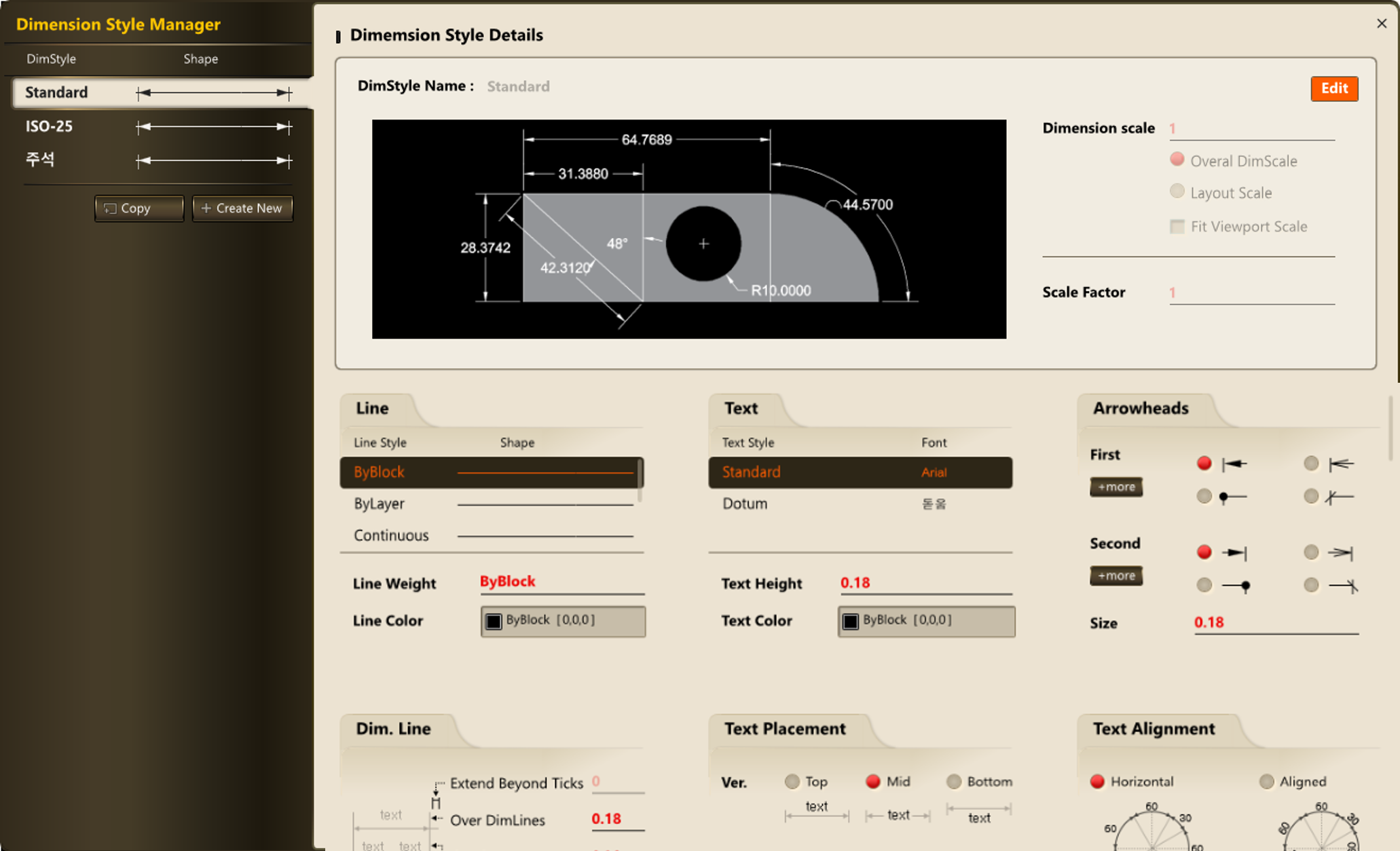
Creation and Editing of Line, Text, and Dimension Styles
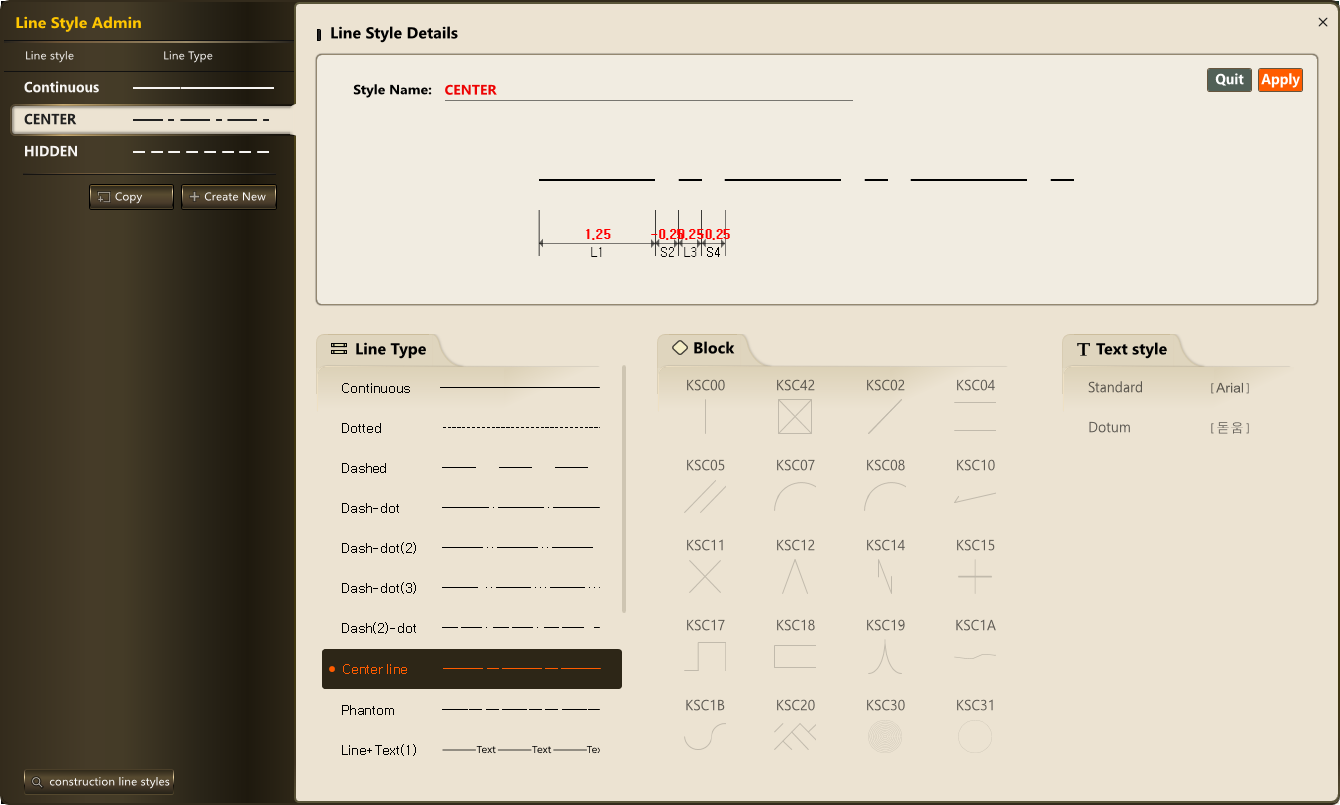
Shows the list of current styles with detailed previews and all adjustable options, and provides functions to create new styles or edit existing ones.
Line Style
- Combine line types, blocks, and text to build custom line styles
- Set spacings for lines, blocks, and text in the preview panel
- Provides Construction CALS standard line types
Text Style
- Groups available fonts for easy selection
- Set size, slant, and shape options in the preview panel
Dimension Style
- Offers detailed, categorized options for dimension lines and values
- Presents options with images for better understanding
Integrated Block Window with Block Library for Efficient Work
Provides an integrated block management window that allows users to easily find various types of blocks in a library format, and to manage block creation, property review, and modification within a single interface.
Block Library
Block Window
Block Library Connection
- Manage and edit general blocks, attribute blocks, and external reference blocks within one unified window
- Easily search and add desired blocks by linking to the block library
Convenient Batch Plotting with Automatic Border Recognition
Automatically detects drawing borders, allowing multiple sheets or long drawings to be plotted at once without manually defining plot areas.
Multiple Sheet Plot
Long Drawing Plot
Automatic Plot Area and Scale Recognition
- Automatically detects and sets plot areas without the need for manual adjustment or paper-length resizing
- Supports batch plotting of multiple drawings or long sheets through border recognition
- User-defined blocks can also be designated as plot areas